AI Prompts for UI/UX: Generate Icons in 5 Different Styles
AI
Decode the language of Midjourney, ChatGPT (DALL-E 3), and Gemini (Nano Banana 2) to design consistent, professional UI icons.
AI tools (Midjourney, ChatGPT, Gemini) are drastically accelerating our design workflows. However, when it comes to UI/UX Iconography, most of us experience the same frustration: while one icon fits perfectly within the frame, another ends up tiny in the corner. Color codes bleed into each other, stroke weights become inconsistent, and worst of all, AI generates overly complex "artistic illustrations" that are completely illegible at 16x16px. Furthermore, it cannot produce native vector outputs, or the generated assets are simply too intricate to be directly converted into usable vectors.
As designers, we think in pixels, grids, and safe zones. AI, on the other hand, thinks in words.
So, how exactly do we teach AI to think like an "Iconography Expert"?
The Anatomy of the Perfect Icon Prompt
To prevent the AI from getting confused, we need to structure our prompt into "variables" just like a developer. Moreover, our rules must be crystal clear to stop the models from hallucinating on abstract concepts (such as rendering a literal leather wallet when you ask for a wallet icon).
The Master Prompt below ensures that your icons are perfectly centered within the frame, consistently scaled to fit the same invisible grid across every generation, and strictly guards against color bleeding (anti-aliasing errors).
Copy this framework and simply replace the [SUBJECT] placeholder with your specific project needs. Then, fill in the [VISUAL_DESCRIPTION] with a concise, literal explanation of what the icon should depict (e.g., "a simple open wallet with a crypto node") to prevent the AI from generating unwanted abstract metaphors.
Master Prompt:
5 Style Codes
Choose the style that best aligns with your app's design language and paste it into the [STYLE_CODE] section of the master template above.
(Note: To establish a modern UI aesthetic, the examples below use Dark Navy Blue #1C274C as the primary color and Light Grey #8D93A5 as the accent color. You can seamlessly integrate your own brand colors into these codes. To ensure the LLM accurately interprets the hex codes, the colors are reinforced with descriptive names such as Light Grey or Navy Blue.)
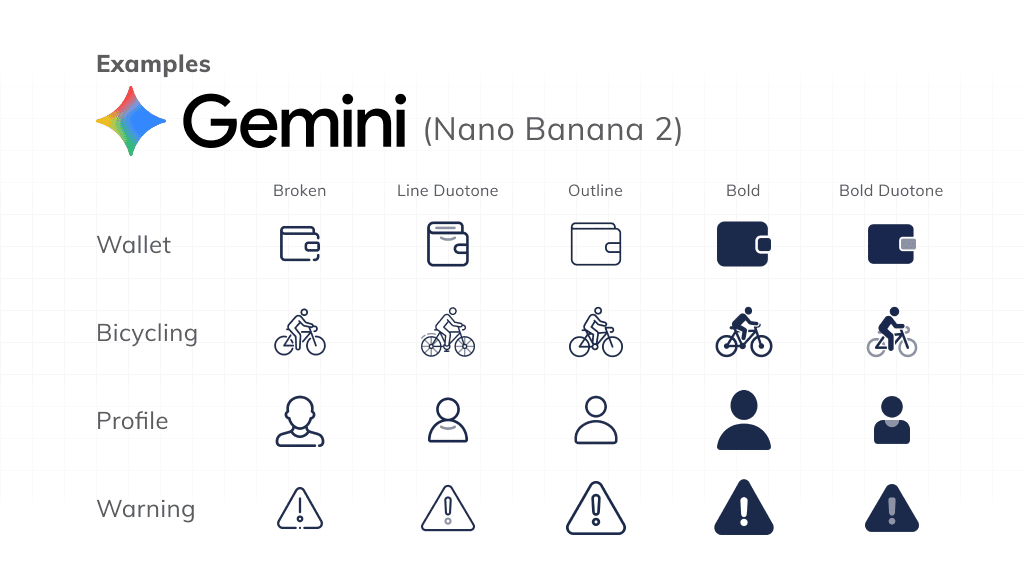
1. Broken
2. Line Duotone
3. Outline
4. Bold
5. Bold Duotone
How to Use the Template?
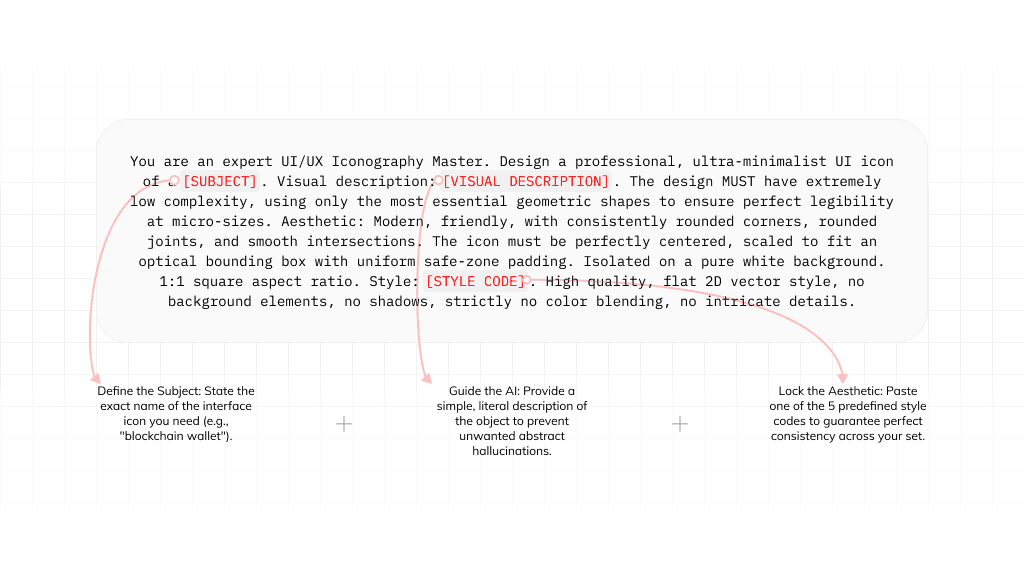
Using this master prompt is as simple as filling in the blanks. Think of it as a modular formula where you only need to change three key variables to generate exactly what you need:
[SUBJECT]: Define your core interface icon (e.g., "Wallet").[VISUAL DESCRIPTION]: Provide a brief, literal explanation to prevent AI hallucinations (e.g., "a simple open wallet with a currency inside").[STYLE CODE]: Choose one of the predefined style codes below to lock in the aesthetic and guarantee perfect consistency across your entire set.
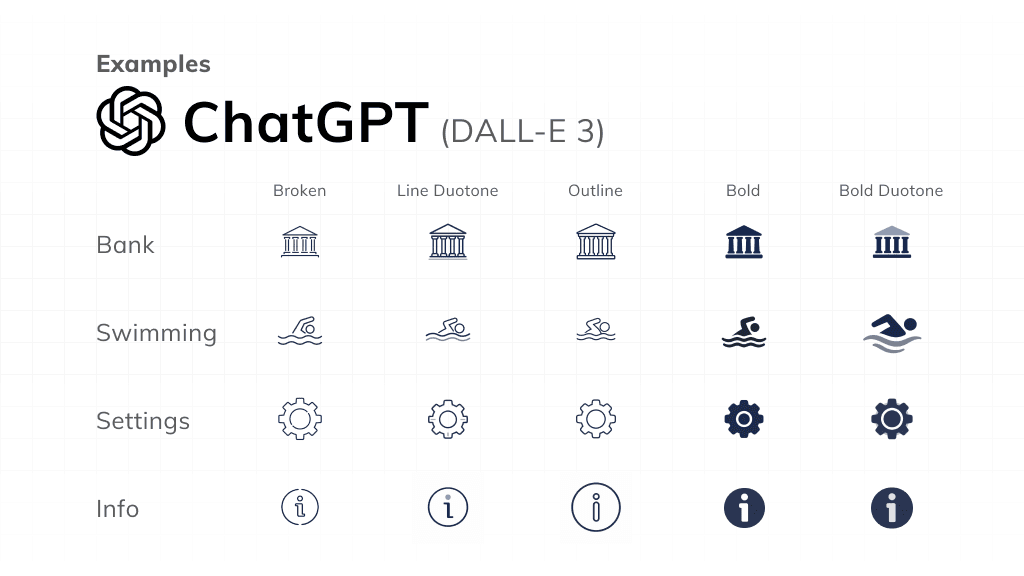
Examples
Final Thoughts
Currently, models like OpenAI’s DALL·E 3 (integrated into ChatGPT), Google’s Nano Banana 2 (integrated into Gemini), and Midjourney V8 cannot generate native vector files directly. Consequently, using these prompts will yield purely pixel-based (raster) images. Nevertheless, these visuals can serve as excellent conceptual foundations to guide you in crafting highly customized, complex icons.
Although the results might not be flawless just yet, you can also experiment with these prompts in Claude to generate .svg outputs.
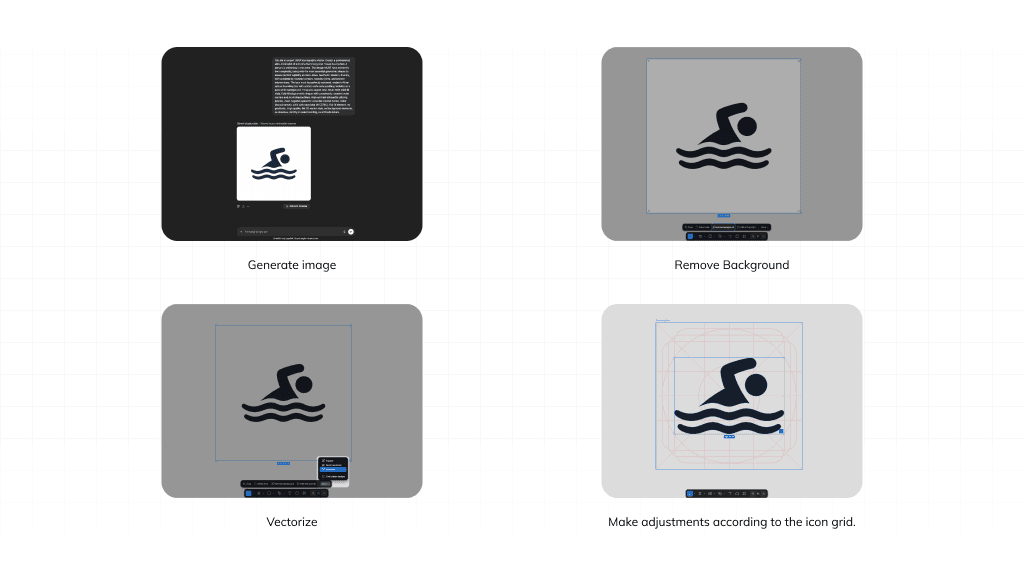
Alternatively, you can vectorize your generated raster assets by first clearing their backgrounds. In Figma, this workflow can be easily executed by utilizing the “Remove Background” followed by the “Vectorize” function, or by leveraging similar third-party tools.